 Joey King
1f59b34c3c
Joey King
1f59b34c3c
10 KiB
digiBandit Tray App
Your direct line to IT support, right from your system tray.
The digiBandit tray app lives in your system tray (the small icons near your clock) and gives you quick access to support, ticket submission, speed tests, software installation, and documentation without opening a browser.
What It Does
| Feature | Description |
|---|---|
| Live Chat | Chat with our support team in real time |
| Report an Issue | Submit a ticket with one click, pre-filled with your issue type and computer name |
| Screenshots | Capture your screen and copy the file path to share with support |
| Speed Test | Test your internet connection speed without leaving the app |
| Install Software | Install digiBandit-managed apps and common software from the tray menu |
| Notifications | Receive important updates, maintenance alerts, and ticket responses |
| System Info | View your device details (hardware, network, software) at a glance |
| Command Palette | Search for any action instantly with Ctrl+Shift+D |
| Auto-Updates | The app keeps itself up to date automatically |
Getting Started
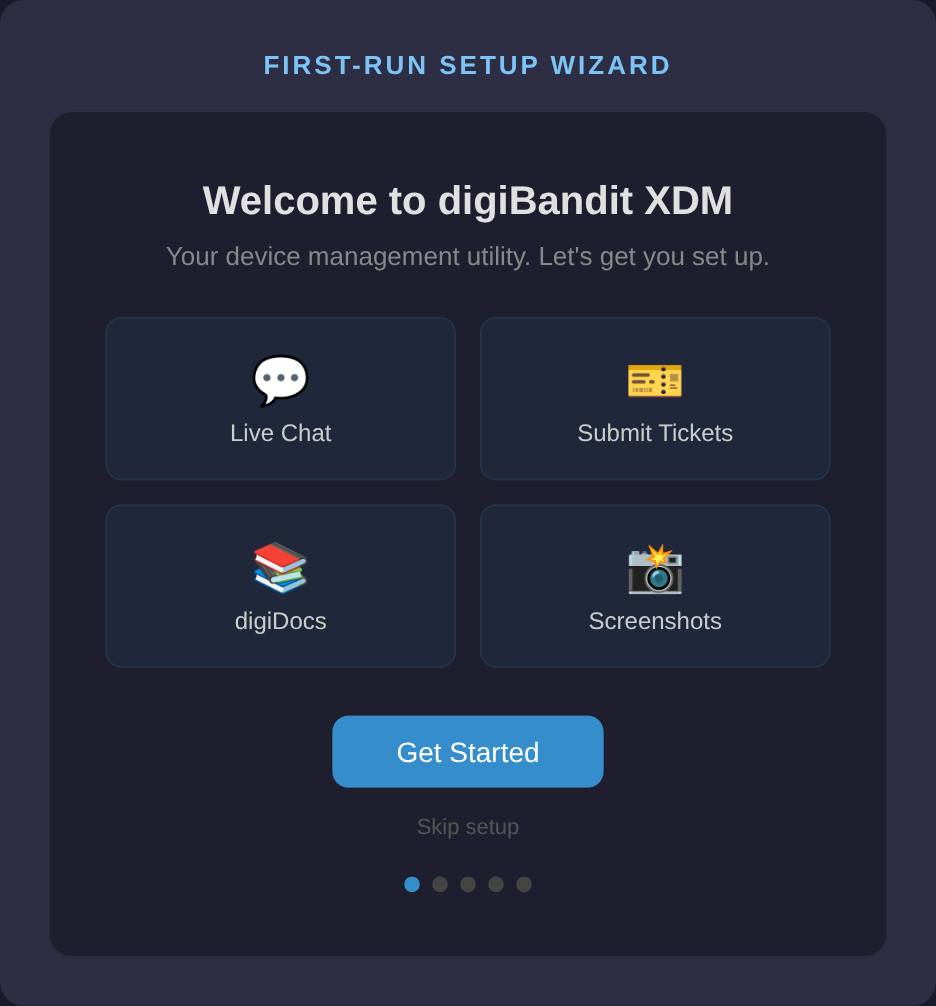
When the app runs for the first time, a short setup wizard will walk you through:
- Welcome - A quick overview of what the app can do
- Sign in with your portal account (the same login you use at ops.dbits.ca)
- Quick tips on how to use the tray menu and keyboard shortcuts
- Connectivity check confirms your device can reach all services
- Done - You're all set
If you already have a portal account, setup takes about 30 seconds. If you don't have one yet, contact us and we'll set one up for you.
You can skip the wizard if you prefer, but signing in is required for chat and ticket features.
Using the Tray Menu
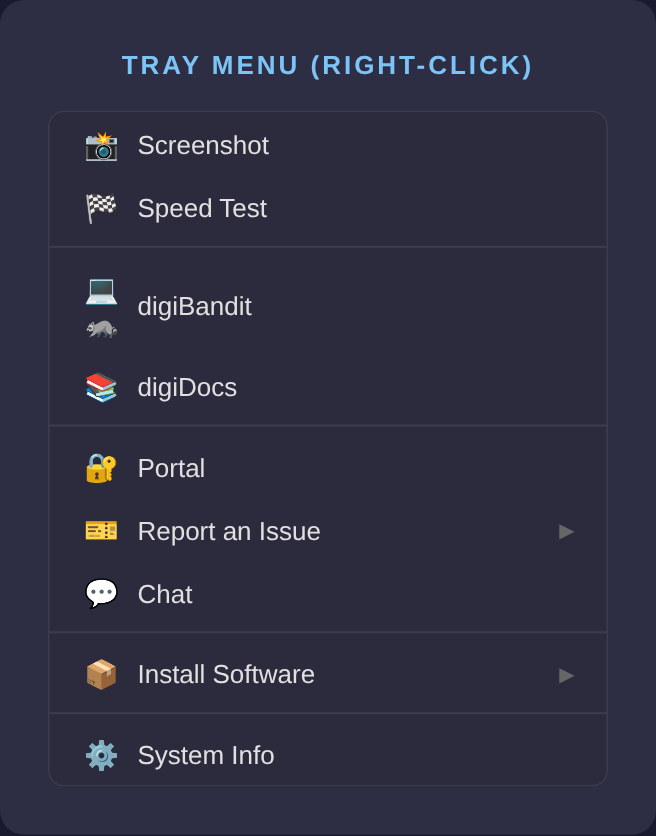
Right-click the digiBandit icon in your system tray to see your options:
Quick Actions
| Menu Item | What It Does |
|---|---|
| Screenshot | Captures your screen and copies the file path to your clipboard |
| Speed Test | Opens a speed test to check your download, upload, and ping |
Portal & Docs
| Menu Item | What It Does |
|---|---|
| digiBandit | Opens the portal home page |
| digiDocs | Opens our documentation library |
| Portal | Opens the login page (if you need to sign in again) |
Report an Issue
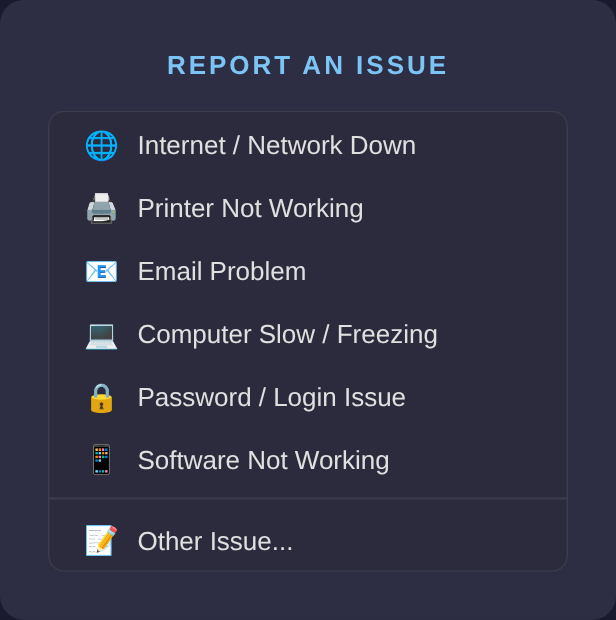
Choose from common problem categories. Each opens the ticket form with your issue type and computer name already filled in:
- Internet / Network Down
- Printer Not Working
- Email Problem
- Computer Slow / Freezing
- Password / Login Issue
- Software Not Working
- Other Issue (blank form)
Chat
Opens a live chat window to talk with our support team directly.
Install Software
Access software installation from the tray menu:
digiBandit Apps - Our standard managed software stack:
| Category | Apps |
|---|---|
| Security | Huntress EDR, AutoElevate, Bitwarden |
| Google Workspace | Google Chrome, Google Drive, GCPW (Google Login) |
| Printing | Printix |
| Backup & Remote | dataBack, RCC Remote Control |
Not all apps are available on every platform. Some managed installs (like Huntress and GCPW) are handled by our team remotely after you request them.
Common Apps - Popular software you can install yourself using your platform's package manager (Chocolatey on Windows, Homebrew on macOS, Flatpak on Linux). Categories include browsers, utilities, communication, and productivity apps.
System Info
Opens a detailed report of your device: hardware specs, network details, installed software, and connection status. Useful when troubleshooting with our team.
Keyboard Shortcut
Press Ctrl+Shift+D (or Cmd+Shift+D on Mac) from anywhere to open the command palette.
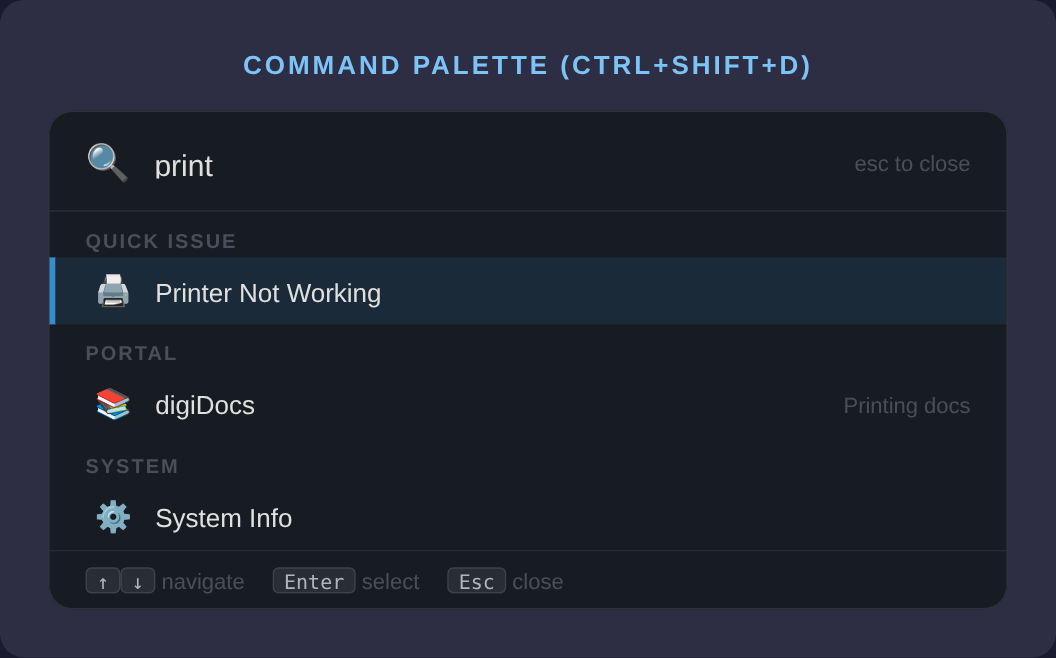
The command palette is a search bar that lets you quickly find any action. Just start typing what you need:
- "chat" - Open live chat
- "ticket" - Submit a ticket
- "screenshot" - Take a screenshot
- "speed" - Run a speed test
- "internet" - Report an internet issue
- "printer" - Report a printer issue
- "info" - Open system info
Arrow keys to navigate, Enter to select, Escape to close.
Reporting an Issue
You have two ways to report an issue:
Quick Report (Recommended)
Right-click the tray icon and choose Report an Issue. Pick the category that matches your problem. The ticket form opens with the issue type and your computer name already filled in. Just add the details and submit.
You can also use the command palette (Ctrl+Shift+D) and type the issue type, like "printer" or "email".
Custom Report
Choose Other Issue from the menu, or use the portal to create a ticket with a custom subject.
Either way, you'll get a confirmation once the ticket is created, and our team will follow up.
Live Chat
Click Chat from the tray menu (or search for "chat" in the command palette) to start a conversation with our team.
- The chat window opens inside the app using the same session as your portal login, so there's nothing extra to sign into
- You'll see a green status dot when connected
- Desktop notifications will alert you when our team responds (even if the chat window is closed)
- Multiple messages from the same person are grouped into a single notification
Speed Test
Click Speed Test from the tray menu or search "speed" in the command palette. This opens our hosted speed test tool (speed.dbits.ca) right inside the app. Results include:
- Download speed
- Upload speed
- Ping / latency
- Jitter
Useful for diagnosing slow internet issues before contacting support.
Screenshots
Click Screenshot from the tray menu or search "screenshot" in the command palette.
- Your entire screen is captured
- The screenshot is saved as a file
- The file path is copied to your clipboard
- A notification confirms the capture
You can paste the file path into a chat message or ticket to share it with our team.
Notifications
The app displays desktop notifications for:
- Scheduled maintenance or required reboots
- Security updates that need your attention
- Responses to your support tickets or chat messages
- System alerts from your IT management agent
Notifications are non-intrusive and appear briefly near your system tray. If you receive multiple messages from the same person quickly, they're grouped into a single notification instead of several.
Your three most recent notifications are shown at the top of the tray menu for quick reference.
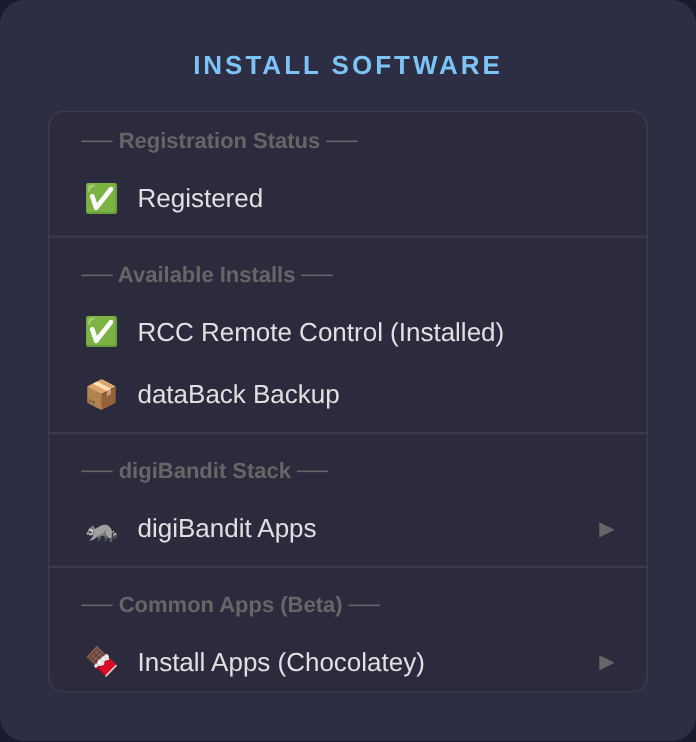
Install Software
The Install Software menu lets you add new software to your device.
digiBandit Apps
These are our standard managed applications. Some install directly, while others (like Huntress and GCPW) send a request to our team for remote deployment.
Common Apps
If your device has a package manager installed (Chocolatey on Windows, Homebrew on macOS, Flatpak on Linux), you'll see a submenu of popular apps organized by category: Browsers, Utilities, Communication, Productivity, and Developer tools.
If the package manager isn't installed yet, the menu offers to set it up for you.
Registration Status
The menu shows whether your device is registered with digiBandit's management system. Registered devices get the full suite of managed services. If you see "Trial Mode", contact us to register.
System Info
The System Info option (also available via the command palette by typing "info") opens a detailed dashboard in your browser showing:
- Computer name, operating system, and architecture
- CPU model, cores, speed, and per-core usage
- Memory (RAM) usage
- Disk space on all drives
- Graphics card information
- Battery status (laptops)
- Network interfaces and public IP address
- Installed browsers and utilities
This is helpful when our team asks about your device specs during troubleshooting.
Auto-Updates
The app updates itself automatically in the background. You don't need to do anything. When a new version is available:
- It downloads silently in the background
- You'll see a brief notification that an update is installing
- The app restarts with the new version
No action required on your part.
Troubleshooting
I don't see the tray icon
- Windows: Click the ^ arrow in your system tray to check for hidden icons. You can drag the digiBandit icon out to keep it visible permanently.
- macOS: Check the menu bar at the top of your screen.
- Linux: Check your desktop environment's system tray area.
The app isn't responding
Close the app from the tray menu and reopen it. If it doesn't appear in the tray, restart your computer. The app starts automatically on login.
I can't sign in
Make sure you have a portal account. If you've forgotten your password, use the "Forgot Password" link on the login page, or contact us for a reset.
Chat isn't connecting
The connectivity check during setup will identify connection issues. If chat was working before but stopped:
- Check your internet connection
- Try closing and reopening the app
- If the app shows "Offline" in its tooltip (hover over the tray icon), your device can't reach our servers
- If the problem persists, submit a ticket through the portal or call us
I'm not getting notifications
- Windows: Go to Settings > System > Notifications and make sure notifications are enabled for dbits-xdmu
- macOS: Check System Preferences > Notifications for the app
- Linux: Ensure your desktop environment's notification system is running
Speed test won't load
Make sure you're connected to the internet. Try closing and reopening the app. If the issue persists, you can also run the speed test directly in your browser at speed.dbits.ca.
Supported Platforms
| Platform | Format | Installation |
|---|---|---|
| Windows | EXE installer | Installed automatically by your IT management agent, or download from your portal |
| macOS | DMG installer | Download from your portal |
| Linux | AppImage | Download from your portal or run the one-line installer |
Need Help?
- Phone: (506) 404-0055
- Email: hey@dbits.ca
- Portal: ops.dbits.ca "